
Each row is a complete design brief
A CSV file sends multiple briefs as a table. It does not automatically specify that all images should contain slogans or work on shirts. Each row needs a complete design idea. For English designs, use the following header and save as UTF-8 with a semicolon delimiter:
theme;design_idea;style;target_audience;additional_requests;language| Column | Content |
|---|---|
theme | The theme, for example Christmas. |
design_idea | The illustration, exact slogan and desired layout. |
style | A clear direction, such as bold retro lettering. |
target_audience | A specific audience, such as backyard beekeepers. |
additional_requests | Colours, transparency and constraints such as no extra words. |
language | en for English or de for German. |
The current importer requires theme, design idea, style and target audience. Theme and audience allow up to 120 characters each, style 80, and design idea and additional requests 1,000 each. Setting en does not replace an explicit instruction to include lettering.
Quotation marks keep columns in place
A semicolon inside a field must be enclosed in ordinary double quotation marks. A double quotation mark inside a quoted field is doubled. Curly quotation marks such as “ and ” are not CSV field delimiters.
"Render the exact slogan ""BUZZING FOR CHRISTMAS""; make the lettering dominant."This is exactly one field. A spreadsheet application normally handles this escaping when exporting to the correct CSV format. Reopen the saved file to check: the values should occupy six columns, and the complete slogan should remain inside the design idea.
Test with ready-made German and English examples
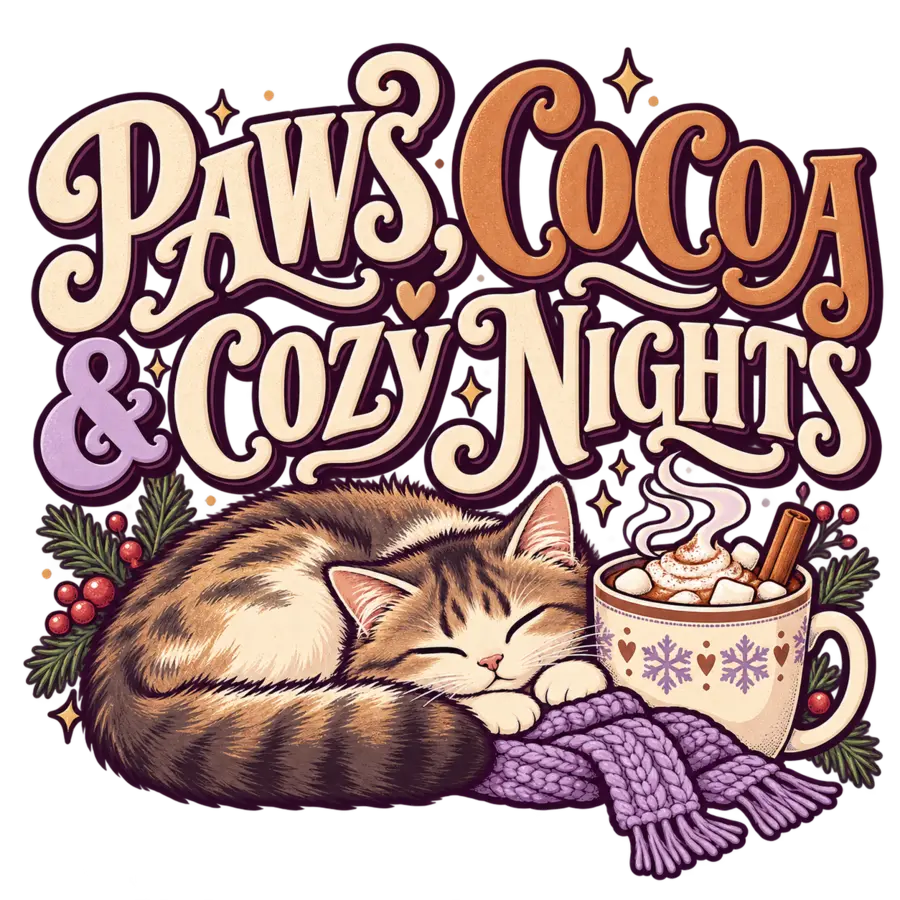
In a CSV batch upload, each data row is read as one design brief. Both files below follow the six-column import template, use a semicolon delimiter and specify one language per row. Every brief includes an explicit slogan. The examples cover beekeeping, knitting, mushroom foraging and cats.
Download 3 German example briefs
Download 3 English example briefs
These are import-ready briefs; they do not claim that every generated image will render the slogan perfectly. Generation uses credits according to the selected quality. Review the total shown in the upload form before starting.
- Upload the language file in Creator → CSV Batch. Use UTF-8 encoding; semicolons separate the six columns.
- Check the detected row count and preview in the form. Start with one brief if you want to inspect a result first.
- Review the displayed credit total before starting.
- After generation, inspect the PNG for the exact wording, legibility and layout. “Finished” means generation completed; it does not rate image quality.
- When changing a brief, save a new CSV version so you can distinguish the batches.
Identify the source of a problem
Missing columns: compare the header with the template and check the delimiter. Unexpected field contents: check semicolons and double quotation marks inside the text. No lettering in the image: first inspect the brief you actually uploaded and all additional instructions; the language setting alone does not request a slogan.
If an image is marked finished but does not match the brief, distinguish importing from image quality. A correctly imported prompt can still produce an unsuitable AI result. A clear filename with a version number and a small test run help you tell old and new briefs apart.